How MaqAI works

One portrait in. A clearer makeup decision out.

Set a reliable baseline, change only what matters, read the result critically, and turn the useful choices into a look you can test and recreate.

Coming soon to theApp Store★★★★★Free download
Warm bronze makeup portrait in black-cherry studio light

01 · Set the baseline

Use a portrait that does not make the decision for you.

Use a front-facing photo with the full face visible, relaxed expression, sharp focus, and soft neutral light. Strong filters, colored light, and existing statement makeup can hide the change you are trying to compare.

  • Camera near eye level
  • Eyes, brows, cheeks, and lips visible
  • Soft, even, neutral light
  • No strong filter or blocked features
Read the full selfie guide →
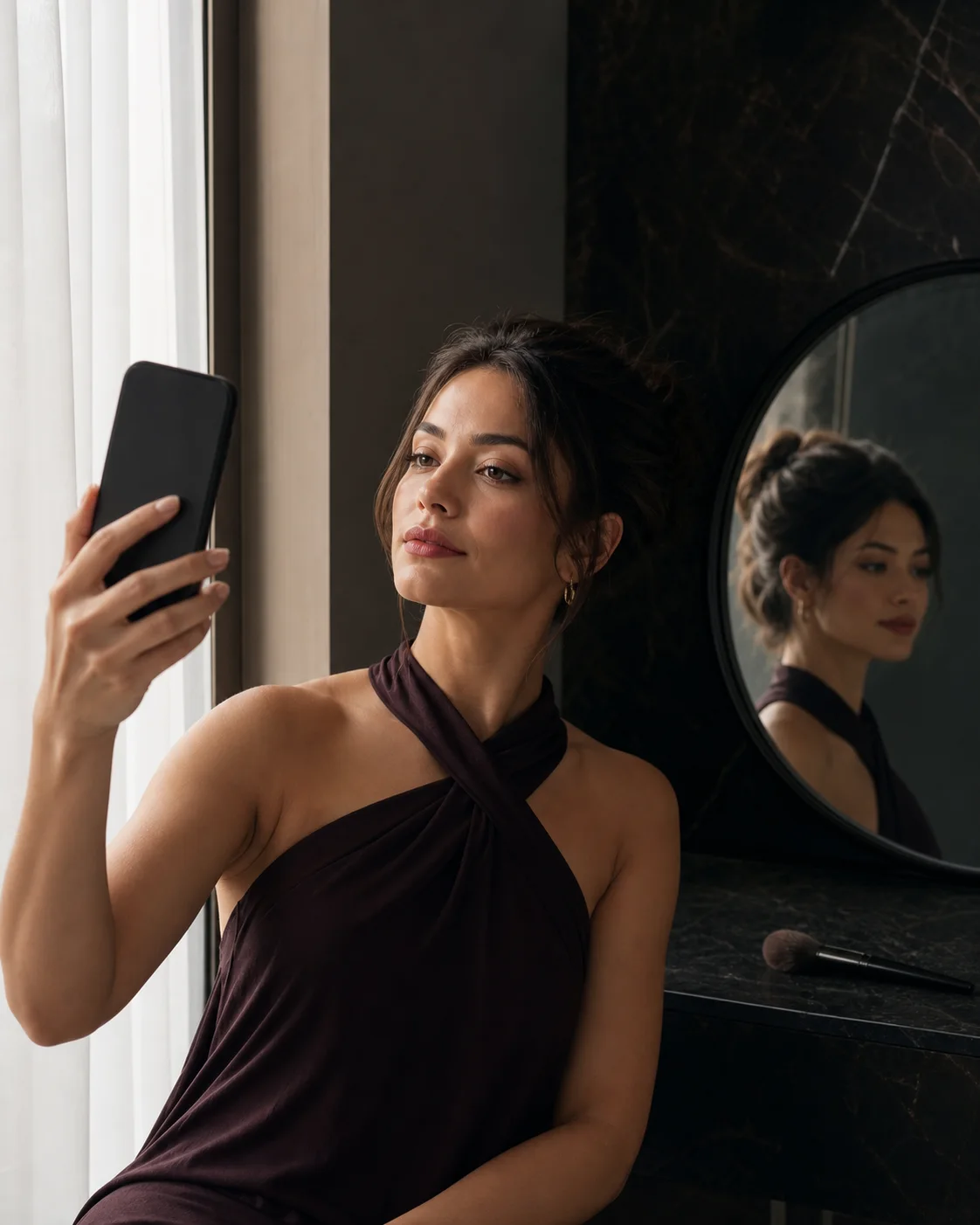
Woman taking a clear portrait beside a softly lit window

02 · Define the question

Try the whole composition—or isolate one exact variable.

Browse a complete look when you are choosing a mood. Open Live AR for fast color play, transfer a reference you already love, or move directly into lips, eyes, complexion, sculpting, brows, and finish when the question is specific.

Complete looksLipsEyesFaceBeautyCustom look

03 · Read the comparison

Judge the requested change before the image around it.

Look first at the mood, color balance, placement, contrast, and focal point. Then separate the details you would recreate from anything the generated image may have invented or over-polished.

If the palette works but the lashes do not, keep the palette. If the eye works but the lip competes, change the lip. A partial success is still information you can use.

Quiet-luxury soft glam makeup preview compared with the original portrait
Pale platinum-blonde woman without makeup before a quiet-luxury soft glam preview

04 · Make it real

Translate the image into products, technique, and order.

Break the saved look into base, sculpt and blush, eyes and brows, then lips and finish. Record shade family, placement, intensity, tools, and timing. The real products do not need to match an imaginary product exactly.

Turn a preview into a routine →
  1. 01
    Base

    Coverage and finish

  2. 02
    Face

    Sculpt and color

  3. 03
    Eyes

    Shape and depth

  4. 04
    Lips

    Color and finish

Read the result in order

Start with the direction before judging individual pixels.

A preview is most informative when you evaluate the question you asked first, then move from the whole face toward the details you would need to recreate.

01

Overall mood

Decide whether the result reads fresh, polished, romantic, sculpted, graphic, soft, or dramatic. This first reaction tells you whether the broad direction is worth investigating.

02

Focal point

Notice where your eye lands. A successful look usually has a clear lead—skin, eye, cheek, or lip—with the remaining elements supporting it rather than competing.

03

Color and placement

Compare warmth, depth, saturation, liner angle, cheek direction, lip edge, and finish. These relationships translate into a real routine better than a single color sampled from a screen.

04

Real-world adaptation

Ask what you would soften, strengthen, or simplify for your time, tools, occasion, skin preparation, and confidence with the technique.

Consistency makes comparison honest

Keep the portrait stable while you change one meaningful variable.

Reuse the same source image for a comparison set. A new angle, crop, expression, camera, or lighting condition can change the apparent balance of the face before makeup enters the picture.

Compare warm and cool lipstick with the same cheeks and eyes. Test dewy and soft-matte finish with the color story held steady. Move blush placement while preserving its shade and intensity. Each controlled pair should answer one question you can name.

When several elements change at once, treat the result as inspiration rather than evidence about one detail. Save it if the mood is useful, then rebuild the idea more deliberately.

Separate the request from invention

Keep what the result taught you, even when the image is imperfect.

Generative previews can introduce skin texture, lashes, brow density, accessories, lighting, or small facial differences that were not part of your request. Do not let an invented detail erase a valid preference about color or placement.

Name the requested change and judge it directly. If you asked for a berry lip, assess its depth, temperature, finish, and relationship to the eyes. If the invented lashes are distracting, ignore them or isolate the lip in a new comparison.

The goal is not to declare an image perfect. It is to leave with clearer language for the direction you want to test in real life.

Choose the right mode

Different beauty questions need different kinds of preview.

Live AR

Fast instinct and movement

Use it when you want to switch color or intensity quickly and see the direction through small changes in angle and expression.

Best question: “Does this family feel promising?”
AI photo preview

Stable before-and-after comparison

Use a still portrait when you want to examine a complete look, isolate a category, or save a clear visual reference.

Best question: “What exactly changed the effect?”
Look Transfer

Inspiration adapted to your portrait

Use it when the reference already has a color story or placement logic you want to understand on yourself.

Best question: “Which part of this inspiration feels like me?”
Builder & Advisor

Controlled recipe and practical plan

Use the Builder to organize layers, then ask the Advisor how to adapt intensity, products, technique, or time.

Best question: “How could I recreate the useful part?”

Permission is part of the workflow

You choose the content and the action before AI processing begins.

  1. 01

    Select. Choose the specific portrait, inspiration image, or Beauty Advisor message relevant to the feature.

  2. 02

    Review. MaqAI identifies what is sent, which service providers receive it, and the purpose of the requested processing.

  3. 03

    Decide. Continue with an affirmative action or leave the flow. Photo and chat permissions remain separate choices.

  4. 04

    Control. Withdraw future AI photo or chat processing permission in Settings → AI Processing.

Save what makes the preference clearer

A small comparison set is more valuable than an endless camera roll.

Keep the original portrait, one option you could try now, and one option that pushes the idea far enough to reveal what you really like. Give each saved direction a purpose.

Baseline

The original keeps novelty in perspective.

Return to the source after every few previews. Ask whether the makeup improves the intended mood or whether the generated image is simply brighter, smoother, or more dramatic. The baseline protects the comparison from becoming a contest between photos.

Wearable

The practical option respects your real constraints.

Choose a version compatible with the time, tools, products, skill, light, and occasion you actually have. It should be specific enough to recreate and flexible enough to survive a real swatch or formula change.

Expressive

The bolder option teaches you where the idea lives.

Push one feature—lip depth, eye shape, cheek saturation, finish, or contrast—rather than making everything louder. You do not need to wear the full version to borrow the part that clarified your taste.

Add a short note to each result: what changed, what you would keep, what you would adapt, and the real test it needs. After you try the look, update the note with product, technique, light, and wear observations. That is how an AI image becomes reusable personal knowledge.

When the first result is not useful

Fix the stage that failed before generating more makeup looks.

An unclear preview usually points to the source, the request, the comparison, or the translation into reality. Use the symptom to choose the smallest correction instead of restarting everything.

Color feels unreliable

Neutralize the light and screen conditions.

Return to a portrait without a strong color cast. Keep device brightness and room light consistent, compare broad warm, cool, muted, vivid, light, and deep relationships, then verify real shade with a swatch.

Placement is hard to read

Use a straighter, unobstructed portrait.

Keep the camera close to eye level with both eyes, brows, cheeks, and the full lip visible. Remove glare, hair, hard shadows, and a dramatic head tilt that can change apparent symmetry or direction.

Too much changed

Repeat only the category that matters.

If the generated skin, lashes, brows, light, or facial detail distracts from the decision, isolate the requested lip, cheek, eye, complexion, or finish. Keep the useful palette or shape and discard unrelated invention.

Every option feels similar

Increase contrast between the tests.

Compare a warmer and cooler family, central and lifted placement, diffused and defined edge, satin and matte finish, or wearable and expressive intensity. Tiny variations create volume without creating information.

The result looks too polished

Separate the makeup idea from retouching.

Judge the focal point and makeup relationships at normal viewing size. Do not add generated smoothness, perfect symmetry, invented lashes, or studio lighting to the real brief unless they represent an intentional technique choice.

The real look behaves differently

Update the plan with product evidence.

Record opacity, undertone, oxidation, texture, transfer, flash, comfort, and wear. Adjust preparation, tool, layer order, placement, or intensity, then keep that real observation beside the saved MaqAI direction.

Regenerate when

The requested feature cannot be evaluated.

Choose a clearer source or a smaller request when the lip, eye, cheek, complexion, or finish is obscured, several unrelated details dominate, or an artifact changes the exact area you are trying to judge. Preserve the original question and change only the condition that prevented an answer.

Move to reality when

The direction is clear and only product behavior remains uncertain.

Once you can describe the preferred family, placement, edge, intensity, and finish, another render adds less value than a swatch or practice session. Test the relevant formula, lighting, camera, wear duration, and application, then add the observation to your saved direction.

The honest expectation

Use AI to explore direction—not to promise an exact product result.

Formula, opacity, oxidation, skin texture, lighting, camera processing, and technique all change real makeup. MaqAI helps you make a clearer shortlist before you test products in real life.

Good to know

How MaqAI works, clearly explained

Straight answers about the app, AI previews, privacy, and what to expect.

Do I need an account to explore MaqAI?

MaqAI can create an anonymous service identifier for core features and usage limits. Optional sign-in can help with account features and keeping data across devices.

When is my photo uploaded?

A photo is sent only after you choose it, request an AI feature, and agree to the specific in-app processing disclosure.

Should I use Live AR or a photo preview?

Live AR is best for quick experimentation. A photo preview is better for a stable before-and-after comparison and a look you may want to save.

Can I recreate the exact result?

Not exactly. Treat the result as a visual brief for shade family, placement, intensity, contrast, and finish. Formula, skin preparation, application, lighting, camera processing, and wear all affect the real result.

Why should I keep the same source photo?

A stable portrait makes comparison more honest. If the angle, expression, crop, or light changes, it becomes harder to tell whether you prefer the makeup or simply prefer the new photo.

What should I do when one detail looks wrong?

Name the useful part first, then isolate the problem. Keep the color story while changing placement, keep the eye while softening the lip, or rebuild the direction in Makeup Builder instead of discarding the entire idea.

Can MaqAI analyze an inspiration image instead of my portrait?

Look Transfer accepts a clear makeup reference and a chosen portrait. Use a real face with visible makeup, and only submit images you have the right and permission to use.

How are photo and Beauty Advisor permissions different?

Photo processing and chat processing are separate consent scopes. MaqAI explains the data, recipients, and purpose before the requested action, and you can withdraw future permission for either scope in Settings.

Your first MaqAI comparison

Start with one portrait and one decision.

Keep the baseline stable, change only what matters, and finish with a shade, placement, finish, or routine direction you can test in real life.

Coming soon to theApp Store★★★★★Free download